Grayscale Phone: The 30-Second Trick That Cuts Screen Time
Turn your iPhone black and white to make the feed dull. The exact setup, a one-tap shortcut to toggle it, and why it works best paired with a real block.
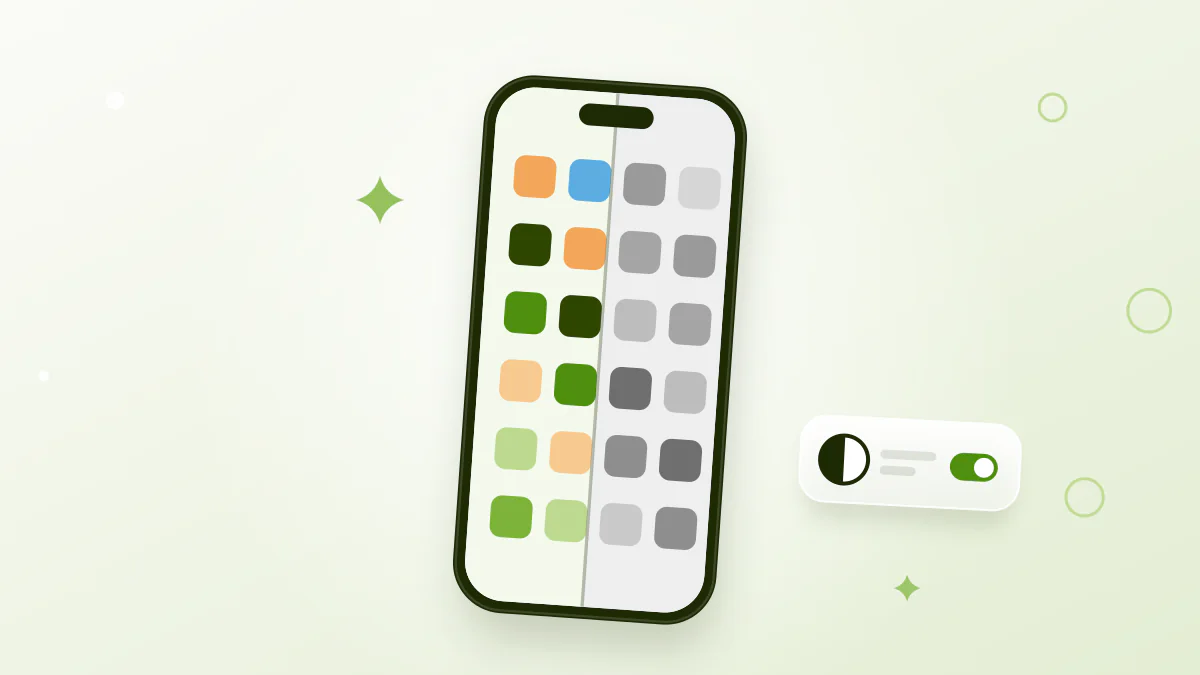
Turning your iPhone black and white takes 30 seconds and makes the feed noticeably less tempting. Color is a big part of what pulls your eye back to the phone: the red badge, the bright thumbnails. Go gray, set a triple-click toggle for when you need color, and pair it with a real block for the nights it isn't enough.
Quick answer
- Turn it on: Settings > Accessibility > Display & Text Size > Color Filters > Grayscale.
- Toggle fast: Settings > Accessibility > Accessibility Shortcut > Color Filters, then triple-click the side button.
- Best time: evenings.
- Limit: it cuts the reflex, not a deliberate binge.
Why does grayscale reduce screen time?
Because color is part of the reward. Apps lean on it hard: the red badge that shouts "unread", saturated thumbnails, bright like buttons. Those cues are tuned to pull your attention before you've chosen to look.
Strip the color and a black-and-white Instagram grid is just gray squares. Nothing about the content changed, only how much your eye wants it.
Grayscale doesn't need willpower. It quietly removes the reward your brain was chasing, so the urge fades on its own.
It is the same idea as burying apps in a folder or cutting notifications: you change the environment instead of white-knuckling self-control.
How do you make your iPhone grayscale?
It's in Accessibility and takes about twenty seconds.
- Open Settings > Accessibility.
- Tap Display & Text Size.
- Tap Color Filters.
- Turn Color Filters on.
- Select Grayscale.
The whole screen turns black and white at once, in every app. To undo it, come back here and turn Color Filters off.
How do you toggle it in one second?
Digging through three menus every time you want color is how good habits die. Set the Accessibility Shortcut instead.
- Open Settings > Accessibility.
- Scroll to the bottom and tap Accessibility Shortcut.
- Select Color Filters.
Now triple-click the side button (or the Home button on older iPhones) to flip between gray and color. Editing a photo or showing someone a picture? Triple-click, then triple-click back.
Prefer a gesture? Go to Settings > Accessibility > Touch > Back Tap, choose Double Tap or Triple Tap, and assign it to Color Filters or to the Accessibility Shortcut (the option depends on your iOS version). Tapping the back of the phone then toggles gray.
What should you expect?
The first day or two feels strange. Then most people notice:
- Fewer autopilot grabs. The reflex reach you don't remember making drops off first.
- A less fun feed. Videos and photos lose their punch, so you close the app sooner.
- Calmer notifications. A gray badge doesn't hijack your eye like a red one.
The real cost is photos and color-coded apps, like a red versus green route on a map. That's what the toggle is for: color for the two minutes you need it, gray the rest of the day. The drab feeling fades within days while the weaker pull keeps working.
When is grayscale most useful?
In the evening. You're tired, defenses are down, and color does the most work pulling you into the feed. Going gray after dinner takes most of the shine off late-night scrolling, one of the moves in our guide on how to stop scrolling.
Some people leave it on all day and triple-click for color. Others go gray from 8 p.m. Try evenings first; it's the easiest version to keep.
Is grayscale enough on its own?
No. Grayscale lowers the pull: how often you reach for the phone and how rewarding the feed feels. But it adds zero friction once you've decided to open an app. A black-and-white TikTok still scrolls forever.
So pair it with a real block. Detox (iOS, paid with a free trial) uses a session limit: quick checks go through, but once you have scrolled the chosen apps continuously past your limit, they lock for a short break while the apps you rely on stay free. A schedule can lock them every night after your cutoff. Unlike the color trick or Screen Time, you can't wave it away in a tap.
Grayscale removes the bait; a block holds the line when you bite anyway. For more environment tweaks, see how to block apps on iPhone and a well-set iPhone Focus mode.
The bottom line
Twenty seconds to set up, a triple-click to toggle, and a weaker pull toward the feed, especially at night. Turn your phone gray to cut the mindless reaching, then add a hard-to-dismiss block for the moments it won't cover.
Frequently asked questions
Does making your phone grayscale reduce screen time?
For most people, a little. Removing color takes the punch out of red badges and bright thumbnails, so you reach for the phone less on autopilot, especially in the evening.
How do I make my iPhone black and white?
Go to Settings > Accessibility > Display & Text Size > Color Filters, turn Color Filters on and pick Grayscale. Toggle it off on the same screen to get color back.
How do I quickly toggle grayscale on and off?
Go to Settings > Accessibility > Accessibility Shortcut and select Color Filters. Triple-click the side button (or Home button) to flip grayscale on and off.
Is grayscale bad for your eyes?
No. It only removes color from the display, and many people find it more restful at night.
Does grayscale work to break phone addiction?
It helps with the reflex, not the binge. Grayscale adds no friction once you've decided to scroll, so pair it with a blocker that's hard to bypass.